This is one of the first good stuff i did in ARToolkit. I downloaded the models from internet. That was a long time ago, then i can't remember the site, but I'll search and post here.

Showing posts with label ARToolkit. Show all posts
Showing posts with label ARToolkit. Show all posts
Tuesday, August 2, 2011

Sunday, July 31, 2011
Tuesday, July 19, 2011
Installing ARToolkit in Windows using Microsoft Visual Studio 2008 as IDE
Now i'll show how install ARToolkit on windows 7, using MIcrosoft Visual Studio 2008 as IDE.
First of all we need to install MIcrosoft Visual Studio 2008 (MIcrosoft Visual Studio 2010 works to)


On windows we can use pre-built ARToolkit. This make more easy to get this working.
In this site (in Japanese) you can download the pre-built lib (with OpenVRML).
This is the direct link.
Unzip the ARToolKit-2.7.1-bin-book.zip to your C drive for example.
It’s a simple intalation:

Click on Install Visual Studio 2008

After click in Next

Next again

Once more

Time for a coffee

Time for a coffee

"Enjoy" some pictures of Microsoft programmers.

One more (lol)

Click in finish
Let's install ARToolkit
On windows we can use pre-built ARToolkit. This make more easy to get this working.
In this site (in Japanese) you can download the pre-built lib (with OpenVRML).
This is the direct link.
Unzip the ARToolKit-2.7.1-bin-book.zip to your C drive for example.
You’ll need to download these files.
1.http://sourceforge.net/project/downloading.php?group_id=116280&filename=DSVL-0.0.8b.zip&a=98368761
2.http://www.dll-files.com/dllindex/dll-files.shtml?msvcp71d
3.http://www.dll-files.com/dllindex/dll-files.shtml?msvcr71d
Unzip the file DSVL-0.0.8b.zip into ARToolKit folder. Like, C:\ARToolKit\DSVL;
Copy the files DSVL.dll and DSVLd.dll that are in C:\ARToolKit\DSVL\bin for C:\ARToolKit\bin;
After this you’ll need install OpenGL and Glut in Visual Studio 2008
For this download :
1.http://sourceforge.net/project/downloading.php?group_id=116280&filename=DSVL-0.0.8b.zip&a=98368761
2.http://www.dll-files.com/dllindex/dll-files.shtml?msvcp71d
3.http://www.dll-files.com/dllindex/dll-files.shtml?msvcr71d
Unzip the file DSVL-0.0.8b.zip into ARToolKit folder. Like, C:\ARToolKit\DSVL;
Copy the files DSVL.dll and DSVLd.dll that are in C:\ARToolKit\DSVL\bin for C:\ARToolKit\bin;
After this you’ll need install OpenGL and Glut in Visual Studio 2008
For this download :
http://sites.google.com/a/maxwellanderson.com.br/www/espa%C3%A7o-acad%C3%AAmico/arquivos/BibliotecasOpenGL.rar?attredirects=0
Unzip the file to a temporary local. Copy the files opengl32.dll, glut32.dll e glu32.dll to C:\Windows\System32 if you’re in Windows 86x (32bits) or C:\Windows\SysWow64 if Windows 64x
Copy the folder include to C:\Program Files\Microsoft Visual Studio 9.0\VC\include and folder lib to C:\Program Files\Microsoft Visual Studio 9.0\VC\lib
Now go to C:\ARToolKit and open the file ARToolKit.sln.
A conversion window will appear. Agree to all.
Click on the “Play” button. Must compile without errors

Change the Debug to Release and click again

Now you must be able to compile the examples. Let’s try it. First off all you need to copy these files to C:\windows\system32

Go to C:\ARToolKit\examples\simpleLite and open simpleLite.vcproj and try to compile it.
Everything's runs well, BUT you won’t gonna run it.
You need to copy C:\ARToolKit\bin\Data to C:\ARToolKit\examples\SimpleLite.
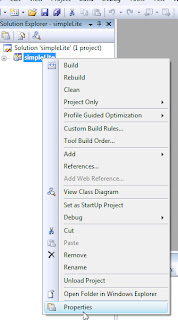
Right click on SimpleLite project and go to Properties.
Go to Linker>General and change Output File to $(OutDir)\$(ProjectName).exe. It’s necessary to compile the program to the current folder, and not to the folder C:\ARToolKit\bin

After that you must be able to compile and run the project.
You need to repeat this last step for all example projects you want compile.
Unzip the file to a temporary local. Copy the files opengl32.dll, glut32.dll e glu32.dll to C:\Windows\System32 if you’re in Windows 86x (32bits) or C:\Windows\SysWow64 if Windows 64x
Copy the folder include to C:\Program Files\Microsoft Visual Studio 9.0\VC\include and folder lib to C:\Program Files\Microsoft Visual Studio 9.0\VC\lib
Now go to C:\ARToolKit and open the file ARToolKit.sln.
A conversion window will appear. Agree to all.
Click on the “Play” button. Must compile without errors
Change the Debug to Release and click again
Now you must be able to compile the examples. Let’s try it. First off all you need to copy these files to C:\windows\system32
Go to C:\ARToolKit\examples\simpleLite and open simpleLite.vcproj and try to compile it.
Everything's runs well, BUT you won’t gonna run it.
You need to copy C:\ARToolKit\bin\Data to C:\ARToolKit\examples\SimpleLite.
Right click on SimpleLite project and go to Properties.

Go to Linker>General and change Output File to $(OutDir)\$(ProjectName).exe. It’s necessary to compile the program to the current folder, and not to the folder C:\ARToolKit\bin

After that you must be able to compile and run the project.
You need to repeat this last step for all example projects you want compile.
Subscribe to:
Posts (Atom)